Verify your files stay on your device
You can check what your browser sends and try the tools without an internet connection. Use a sample document for your first check.
1. Watch the network
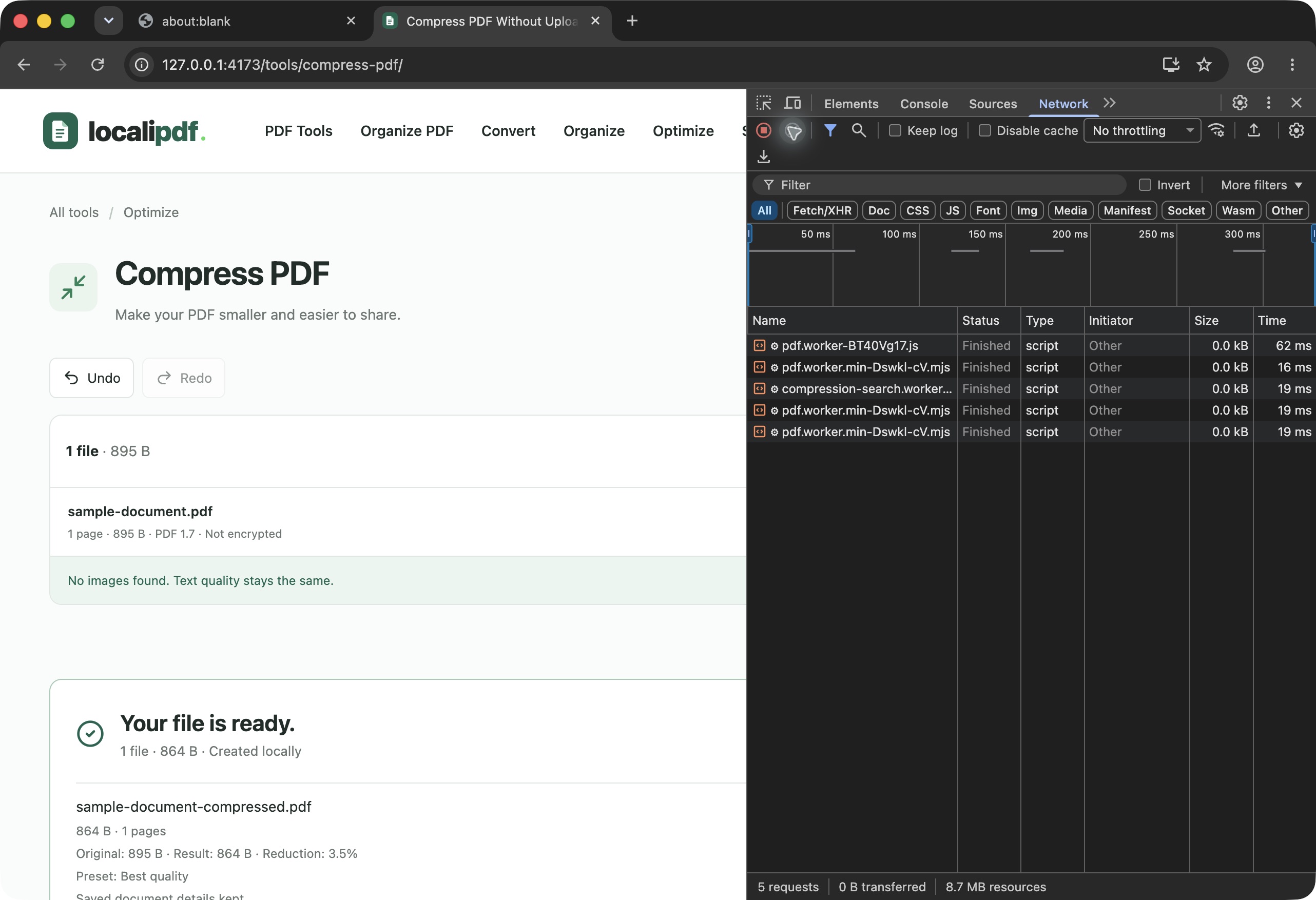
In Chrome, open Developer Tools and choose Network. Keep the request list visible, then choose a file and run a tool. Open requests and inspect their Payload. Your document, its filename and its password should not appear there. Website files and Google or Cloudflare analytics requests are separate from your document.
2. Try it offline
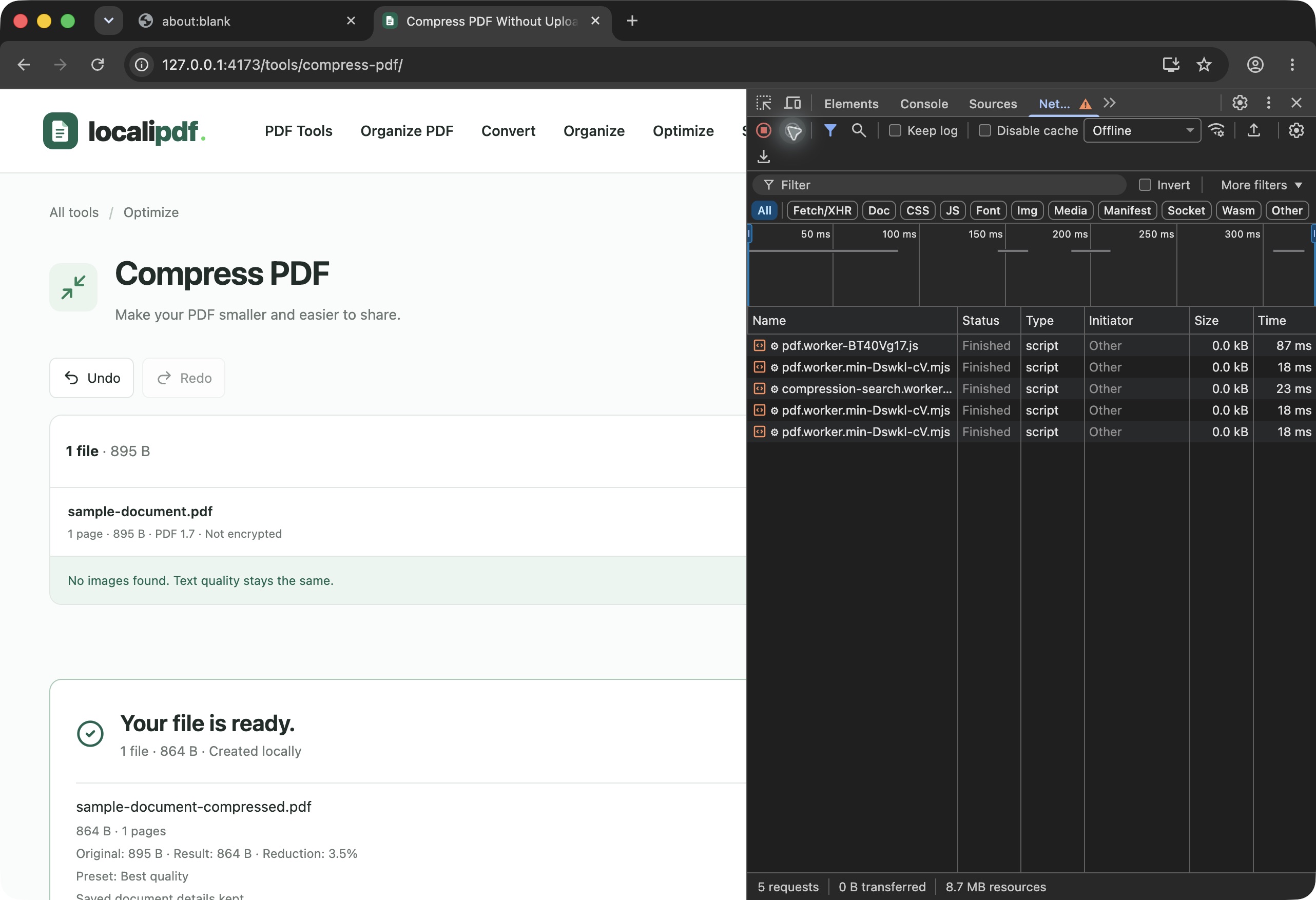
First wait for the Works offline badge. Turn off Wi-Fi, or choose Offline in Developer Tools → Network. Open a tool, choose a file and download the result. You can also reload the page offline. Download unfinished work before reloading, because refresh clears the workspace.
What is saved for offline use?
The initial offline download saves the app, tool pages, PDF workers and fonts. OCR engines, languages and number-checking models download separately when used. For full offline OCR, open the OCR tool and choose Save OCR for offline use before disconnecting. Wait until it says OCR is ready offline. Selected documents and passwords are never saved in these caches. Refresh clears your work, but keeps downloaded app files. Your browser may remove them when storage is low; you can also remove them in its site-data settings.
What this check tells you
These checks let you inspect a particular operation; they are not a guarantee about every future file or website update. Our automated tests use sample files and check each available tool in Chromium, Firefox and WebKit. Coming-soon tools are not included. Website analytics need a connection, but document processing does not.